SPF, DKIM and DMARC: stop your business emails going to spam
If your quotes and invoices land in spam, the cause is often three missing DNS records. SPF, DKIM and DMARC prove your emails really come from you. Here is how to set them up without breaking your email.
You send a quotation from sales@yourbusiness.in, and the client says it never arrived. It's in their spam folder, or it was silently rejected. Very often, the cause isn't the content of your email but three missing or broken DNS records: SPF, DKIM and DMARC.
Large mailbox providers now expect them. Gmail and Yahoo made authentication requirements stricter for bulk senders from February 2024, and even small senders are far more likely to reach the inbox with all three in place.
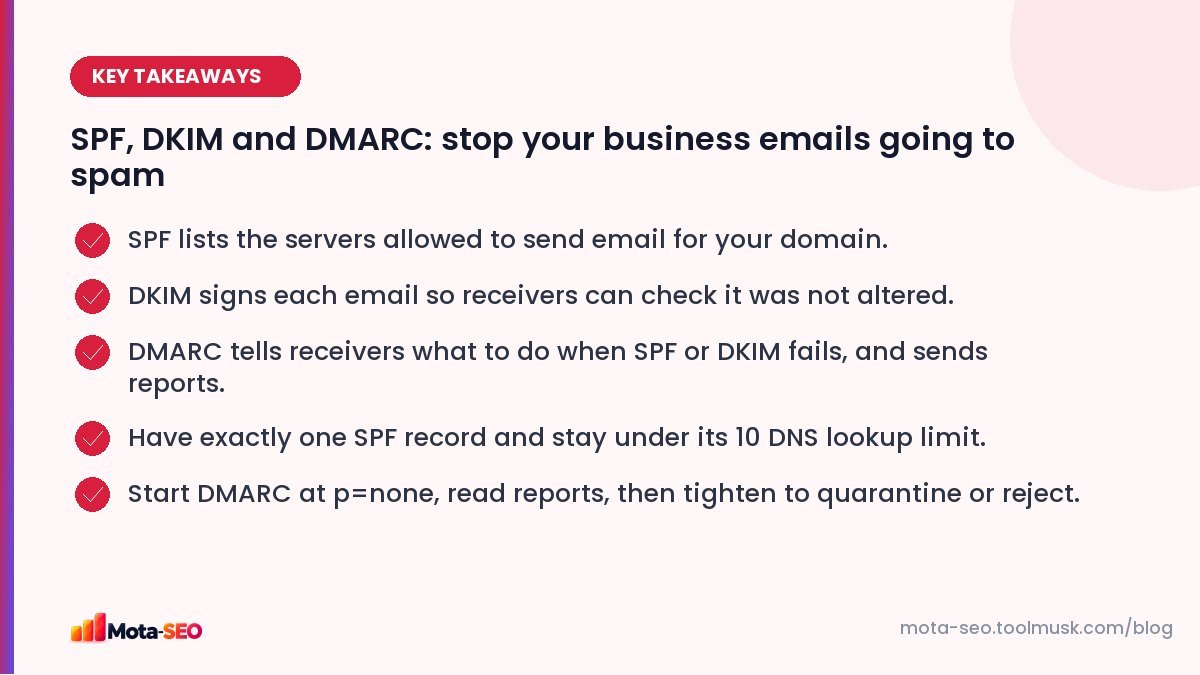
Key takeaways from this guide
What each record does
| Record | Question it answers |
|---|---|
| SPF | Is this server allowed to send email for this domain? |
| DKIM | Was this email really sent by the domain, and unchanged on the way? |
| DMARC | If SPF or DKIM fails, what should the receiver do, and where should reports go? |
All three are TXT records in your domain's DNS. If DNS is new to you, read our DNS records guide first.
Step 1: List everything that sends email as your domain
Before touching DNS, list every service that sends mail "from" your domain:
- your mailbox provider (Google Workspace, Zoho Mail, Microsoft 365),
- your website's contact forms and order emails (the web host's server or an SMTP service),
- newsletter tools,
- CRM, invoicing and helpdesk software.
Forgetting one is how people break their own invoices or password-reset emails when they add a strict policy.
Step 2: SPF
One TXT record on the root of the domain, listing allowed senders:
v=spf1 include:_spf.google.com include:sendgrid.net ~all- Each
include:comes from your providers' documentation (Zoho, for example, usesinclude:zoho.infor Indian data centre accounts, so check what your account requires). ~all(softfail) is a safe ending while you set things up;-all(fail) is stricter.- Only one SPF record per domain. Two separate SPF records is an error that can make SPF fail entirely. Merge them into one.
- Maximum 10 DNS lookups. Each include can trigger more lookups. Too many providers can exceed the limit; remove services you no longer use.
Check yours with the SPF record checker, which also counts lookups.
Step 3: DKIM
Each sending service gives you a DKIM key to publish, usually as a TXT (or CNAME) record on a name like google._domainkey.yourbusiness.in. Steps:
- In your provider's admin panel, generate a DKIM key.
- Add the record exactly as given (long keys are sometimes split into quoted chunks; your DNS host may handle that automatically).
- Go back to the provider and click "Start authentication" or similar.
Repeat for each service that sends mail as your domain. Verify with the DKIM checker (you'll need the selector name, the part before ._domainkey).
Step 4: DMARC
One TXT record at _dmarc.yourbusiness.in. Start in monitoring mode:
v=DMARC1; p=none; rua=mailto:dmarc-reports@yourbusiness.in; fo=1p=none: don't change delivery yet, just report.rua: where aggregate reports are sent (daily XML summaries from receivers).
After a few weeks of reports showing all your legitimate sources pass SPF or DKIM with alignment, move to p=quarantine (failing mail goes to spam), and later p=reject (failing mail is refused). That's what stops others from sending fake emails pretending to be you. Check the record with the DMARC checker.
What "alignment" means
DMARC passes when SPF or DKIM passes and the domain it checked matches the domain in the visible From address. A newsletter tool might pass SPF for its own domain, not yours; setting up DKIM for your domain in that tool fixes alignment.
Testing
- Send an email from each service to a Gmail address.
- In Gmail, open the email → three dots → "Show original".
- Look for SPF: PASS, DKIM: PASS, DMARC: PASS.
Common problems
| Symptom | Likely cause |
|---|---|
| SPF permerror | Two SPF records, or more than 10 lookups. |
| Website order emails in spam | The web server isn't in SPF and has no DKIM; send through an authenticated SMTP service instead. |
| DMARC fails for newsletters | DKIM not set up for your domain in the newsletter tool. |
| Everything broke after p=reject | A sender was missed in Step 1. Go back to p=none, fix, then tighten again. |
None of this affects your website's SEO directly. It affects whether customers receive your quotes, invoices and replies, which for most businesses matters more than any ranking.
Frequently asked questions
Do I need SPF, DKIM and DMARC?
Yes, if you send email from your own domain. Major mailbox providers increasingly expect all three, and they reduce the chance of your emails landing in spam or being spoofed.
Can I have two SPF records?
No. Two SPF records cause SPF to fail. Combine all senders into a single record.
What DMARC policy should I start with?
Start with p=none to collect reports without affecting delivery, then move to quarantine and reject once all legitimate senders pass.
Why do my website contact form emails go to spam?
Often because the web server sends them without SPF or DKIM for your domain. Sending through an authenticated SMTP service usually fixes it.

Written by the Mota-SEO team
We build free SEO and website tools. Our guides are practical, written for small teams, and checked against Google's own documentation.



Comments 0