Google Business Profile: the complete setup guide for local businesses
For local searches, your Google Business Profile often gets more attention than your website. A complete, accurate profile is the fastest local SEO win there is. Here is how to set up every part of it.
When someone searches "dentist near me" or "bakery in Indiranagar", Google usually shows a map with three businesses before any ordinary results. Those listings come from Google Business Profile (formerly Google My Business). For many local businesses, that map pack brings more calls than the website does.
The good news: it's free, and a complete, well-maintained profile beats a neglected one even when the neglected business has been around longer.
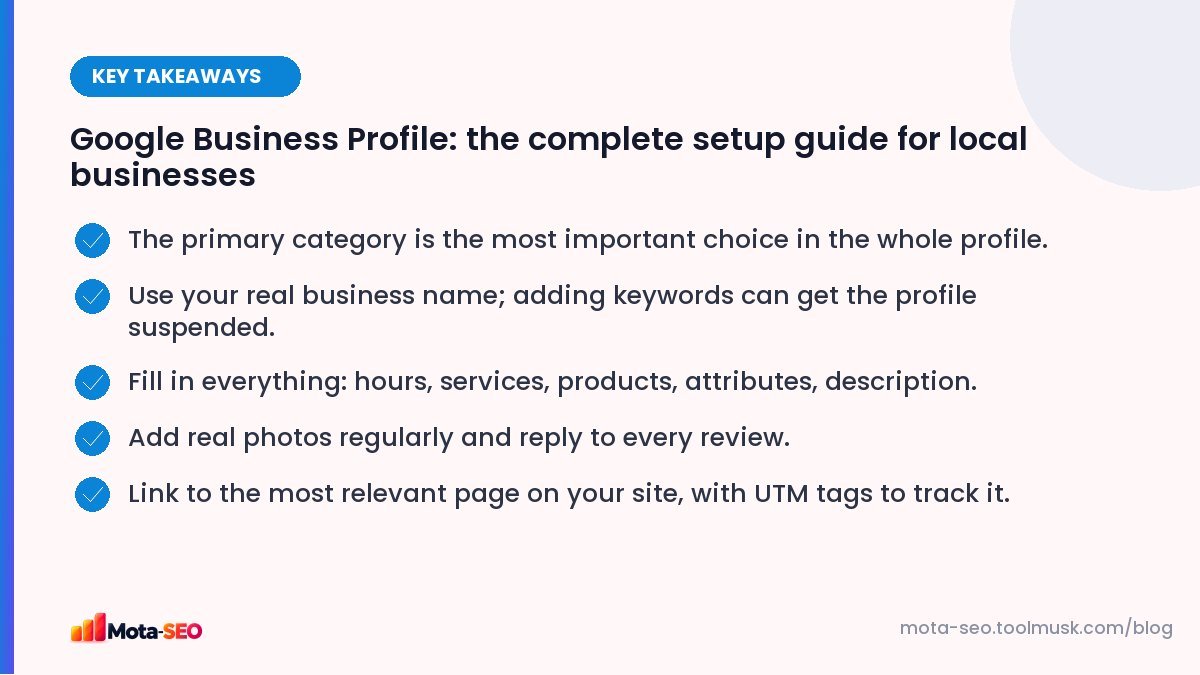
Key takeaways from this guide
How Google ranks local results
Google says local results are based mainly on three things:
- Relevance: how well your profile matches the search (categories, services, description).
- Distance: how far you are from the searcher or the location in the search.
- Prominence: how well known you are (reviews, links, mentions, and your website's overall strength).
You can't change distance. You can influence the other two a lot.
Step 1: Create or claim the profile
Search your business name on Google Maps. If a listing already exists, claim it; if not, create one at the Google Business Profile site. Use an email address the business controls long-term, not a personal one of an employee who might leave.
Step 2: Business name: keep it real
Use your actual business name as it appears on your signboard and documents. "Sharma Dental Clinic" is fine. "Sharma Dental Clinic – Best Dentist in Jaipur Root Canal Braces" breaks Google's guidelines. Competitors can report keyword-stuffed names, and profiles get suspended for it.
Step 3: Categories: the most important setting
Choose the most specific primary category that describes your core business: "Pediatric dentist" rather than "Dentist" if that's what you are, "Indian restaurant" rather than "Restaurant". Then add a few secondary categories for other real services. Look at which categories top-ranking competitors use for ideas.
Step 4: Location or service area
- If customers visit you, show your address.
- If you visit customers (plumbers, pest control, home tutors) and don't serve people at your address, hide the address and set a service area instead.
Virtual offices and co-working addresses you don't actually staff aren't eligible.
Step 5: Verification
Google needs to confirm you're real. Depending on the business, options include a phone or email code, a video showing your signboard, workplace and proof of management, or a postcard. Video verification is common now: record a continuous clip showing the street, the outside signage, the inside, and something like a utility bill or tools of the trade. Follow the on-screen instructions exactly; rushed videos are the main reason verification fails.
Step 6: Fill in every field
| Field | Tips |
|---|---|
| Hours | Accurate, plus special hours for festivals and holidays. |
| Phone | A number that's answered. Same number as on your website. |
| Website | Link to the most relevant page (often the homepage or a location page), tagged with UTMs to track visits; see our UTM builder. |
| Description | 750 characters about what you do, for whom, where. Natural language, no links or ALL CAPS. |
| Services / Products | List each service with a short description and price where possible. |
| Attributes | Wheelchair accessible, women-led, online appointments, UPI accepted and so on. |
| Opening date | Shows how long you've been around. |
Step 7: Photos
Real photos of the outside (so people recognise the place), the inside, your team at work, and your products or results. Add new ones every month or two. Skip stock photos and heavily edited images; they look generic next to competitors' real photos.
Step 8: Reviews: get them, answer them
- Ask every happy customer, ideally right after a good experience. A short link or a QR code at the counter makes it easy; our QR generator turns your review link into a code.
- Reply to every review, good or bad, within a few days. For bad ones, be calm, specific and offer to fix things offline.
- Never buy reviews, offer discounts for reviews, or review yourself. Google removes them and may restrict the profile.
Step 9: Posts and updates
Posts let you share offers, events and news on your profile. They don't need to be daily; one or two a month keeps the profile looking active, especially before festivals and seasonal peaks.
Step 10: Connect it to your website
Your website supports your profile's prominence. Make sure your site shows the same name, address and phone (see NAP consistency), has a page for each main service, and mentions the areas you serve. Adding LocalBusiness structured data helps too; see our schema guide.
Mistakes that get profiles suspended
- Keywords stuffed into the business name.
- Addresses you don't really operate from.
- Several profiles for the same business at the same location.
- Fake reviews.
- Frequent, unexplained changes to core details.
Set aside an hour to set it up properly and twenty minutes a month to add photos, a post and replies to reviews. For a local business, that's probably the best-value hour in all of marketing. For the wider strategy, read local SEO for Indian businesses.
Frequently asked questions
Is Google Business Profile free?
Yes. Creating and managing a Google Business Profile is free.
How do I rank higher on Google Maps?
Choose the right primary category, complete every field, keep details accurate, add real photos, collect and reply to reviews, and support it with a strong local website.
Can I have a Google Business Profile without an address?
Yes, if you serve customers at their locations. Hide the address and set a service area instead.
Why was my Google Business Profile suspended?
Common reasons are keywords in the business name, an ineligible address, duplicate profiles, or suspicious edits. You can appeal after fixing the issue.

Written by the Mota-SEO team
We build free SEO and website tools. Our guides are practical, written for small teams, and checked against Google's own documentation.
Comments 0