How to find and fix broken links (404s) without hurting SEO
Every site breaks links over time: pages get deleted, URLs change, other sites move. A few 404s are normal. Here is how to find the ones that matter, fix them in the right way, and stop them coming back.
Broken links are links that lead nowhere useful, usually to a "404 Not Found" page. They frustrate visitors, waste crawl effort, and when the broken URL used to have links from other sites, they throw away ranking value you'd earned.
The good news: most broken links are easy to find and fix, and you don't need to fix every single one.
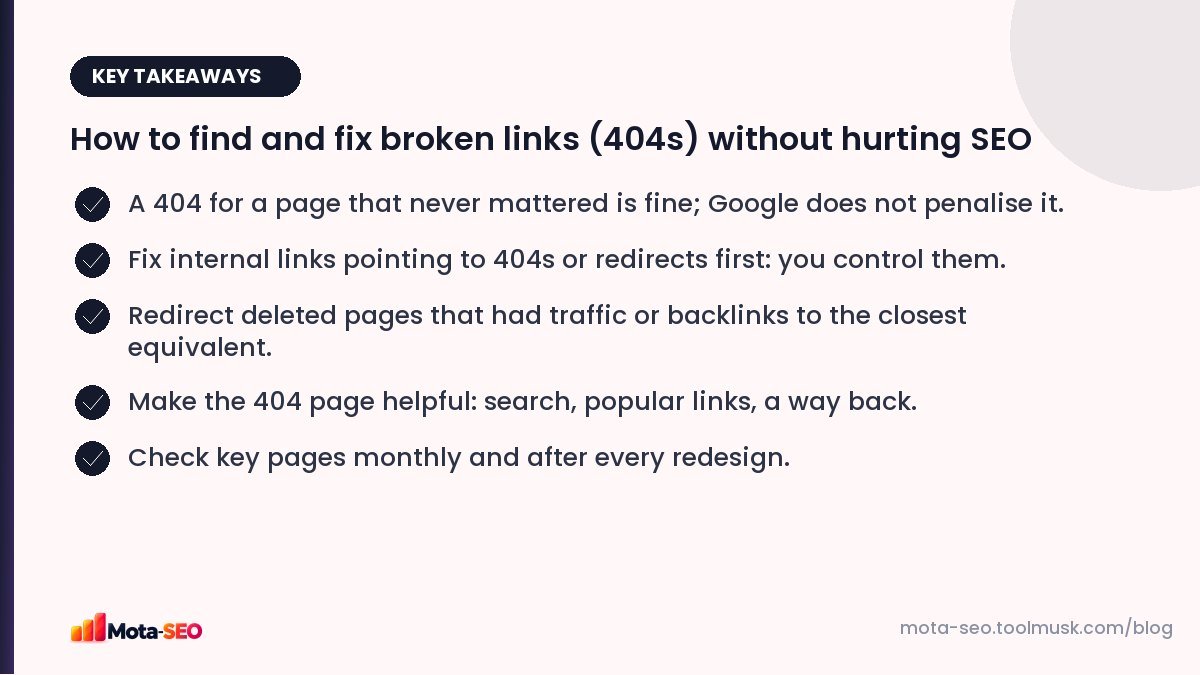
Key takeaways from this guide
Types of broken links
- Broken internal links: your page links to another page on your own site that no longer exists. Fully in your control; fix these first.
- Broken outbound links: you link to another site's page that moved or disappeared. Bad for readers; update or remove them.
- Broken inbound links: other sites link to a URL on your site that now 404s. You can't edit their link, but you can redirect the URL.
Do 404s hurt SEO?
Google has said clearly that 404s are a normal part of the web and don't cause a site-wide penalty. If a page is gone and nothing important pointed to it, a 404 (or 410, "gone") is the correct response.
What does hurt:
- losing the value of backlinks pointing to deleted pages,
- visitors hitting dead ends and leaving,
- Googlebot spending time on hundreds of dead internal links,
- important pages becoming harder to reach because the links to them are broken.
How to find broken links
1. Crawl your key pages
Run your homepage, main navigation pages and top articles through our broken link checker. It lists every link on the page with its status code, so you'll see 404s, server errors and redirects at a glance.
2. Search Console's Pages report
Look at "Not found (404)". This shows URLs Google tried to crawl that returned 404, which includes URLs linked from other sites. Click a URL and use URL inspection to see where Google found it.
3. Your analytics 404 page
If your 404 page has a distinct page title, you can see in analytics which missing URLs visitors are actually requesting, and from where.
How to fix each type
| Situation | Fix |
|---|---|
| Internal link to a deleted page | Update the link to the right page, or remove it. |
| Internal link to a redirected URL | Update it to the final URL (removes a hop). |
| Deleted page with backlinks or traffic | 301 redirect to the closest equivalent page. |
| Deleted page with no links or traffic | Leave it as 404 or 410. |
| Outbound link to a dead page | Link to the new location, an archived copy, or remove it. |
| Typo in a link from another site | Redirect the mistyped URL to the correct page. |
Don't redirect everything to the homepage
Mass-redirecting all old URLs to the homepage is tempting, but Google often treats this as a soft 404: the redirect target doesn't match what was requested, so no value is passed. Visitors land somewhere irrelevant too. Redirect to a genuinely related page, or let the URL 404.
Watch for "soft 404s"
A soft 404 is a page that says "not found" or is nearly empty but returns a 200 OK status. Search Console reports these. See HTTP status codes explained for what each code means. Make sure missing pages return a real 404 status; check with the HTTP headers checker or the website status checker.
Make your 404 page useful
Some visitors will always hit missing pages. A good 404 page keeps them:
- says clearly the page wasn't found, in plain language,
- offers a search box,
- links to the most popular pages or categories,
- keeps the normal site header and navigation,
- returns a real 404 status code.
Preventing broken links
- Add a redirect every time you change or delete a URL. Make it part of the publishing checklist.
- Use relative or root-relative links for internal links so domain changes don't break them.
- Check after redesigns and migrations, when broken links multiply.
- Review outbound links in old articles once a year; external sites change constantly.
A monthly 15-minute routine
- Run the broken link checker on your homepage and top five pages.
- Check Search Console for new 404s from external links.
- Redirect any lost URL that had links or traffic.
- Update internal links that point to redirects.
Broken link fixing is one of the most satisfying SEO tasks: concrete, quick, and occasionally you recover a backlink from years ago that's been pointing at nothing. It's also part of the wider internal linking routine we recommend.
Frequently asked questions
Do 404 errors hurt my rankings?
Not on their own. 404s for pages that are genuinely gone are normal. Problems come from losing backlinks to deleted pages and from broken internal links that hide important pages.
Should I redirect all 404 pages?
No. Redirect URLs that had backlinks or traffic to the closest equivalent page. Let unimportant missing pages return 404 or 410.
What is a soft 404?
A page that tells users it was not found, or has almost no content, but returns a 200 OK status code. Search engines treat it as an error; return a proper 404 instead.
How often should I check for broken links?
Check your key pages monthly and the whole site after any redesign, migration or big content change.

Written by the Mota-SEO team
We build free SEO and website tools. Our guides are practical, written for small teams, and checked against Google's own documentation.

Comments 0